

Mac app
Work in conversations, with a terminal one toggle away.
Start a conversation
Choose New or press ⌘N. airship creates an idle orchestrator and focuses Chat. Choose Agent or Lane from New’s menu when that better fits your task.
The session bar shows kind, runtime, host, folder and model. Before the first submission, changing the kind, runtime, host or folder replaces the fresh session. After submission those choices lock. Model, effort and context controls remain available; read the application message to see when a change takes effect.
Framework lanes ask for their role and reference inline. Some lanes run commands and have no interactive agent prompt.
Read Chat or open Terminal
Chat shows the conversation, tool activity and a composer. Use Jump to Latest after reading earlier messages. Switch Chat / Terminal with ⇧⌘J to use the runtime’s terminal interface. Switching views does not start a second conversation.
Add files with Explorer
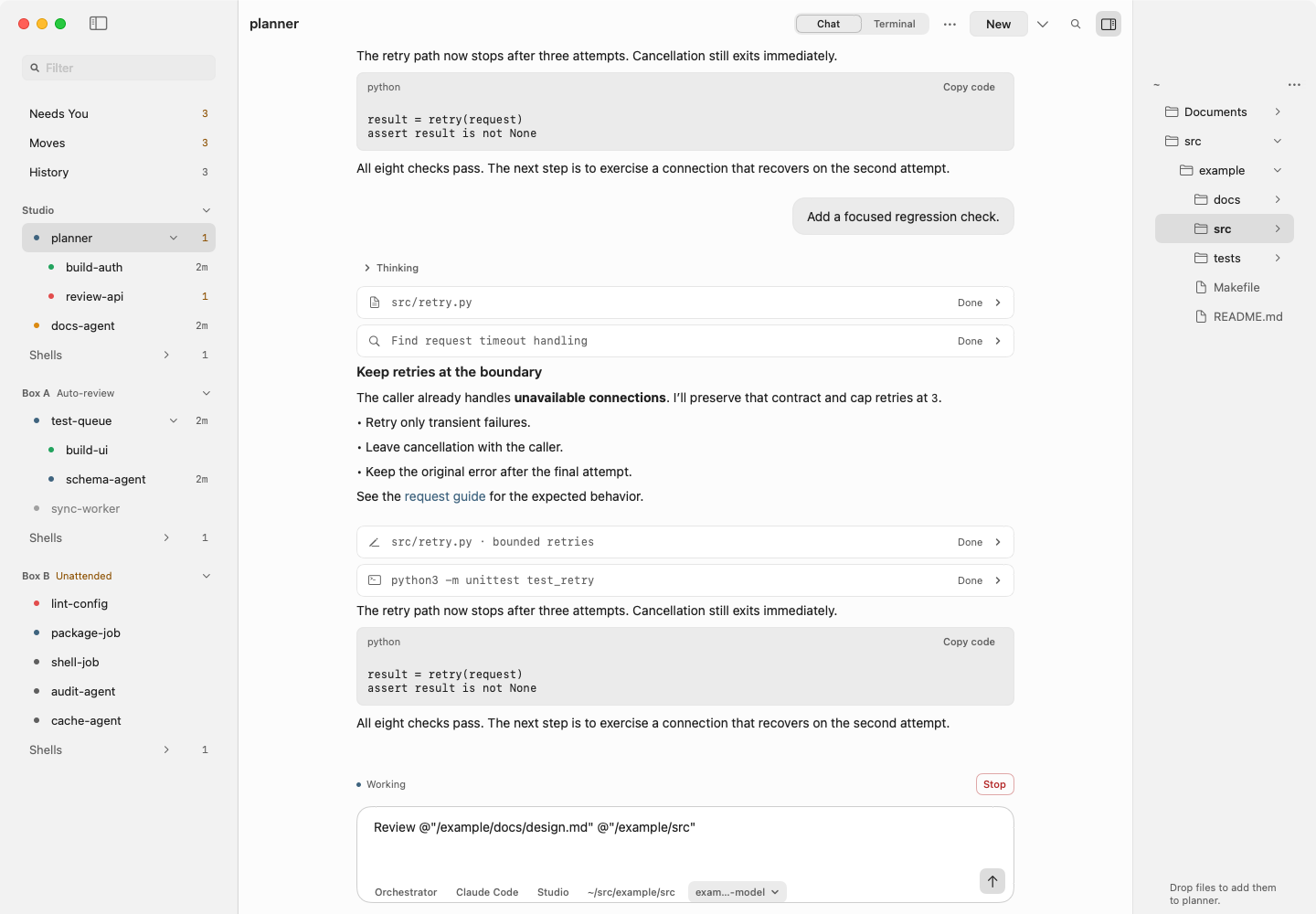
Show Explorer with ⇧⌘E. It browses files on this Mac. Drag files or folders from Explorer or Finder into Chat, the composer or Terminal.
In Chat, a drop adds quoted path mentions to your draft. In Terminal, it pastes escaped paths. A drop never sends the message or presses Return. For a remote session, airship uploads the files first and shows transfer progress. If your selection changes, completed paths remain copyable for the original session.
Answer approvals and questions
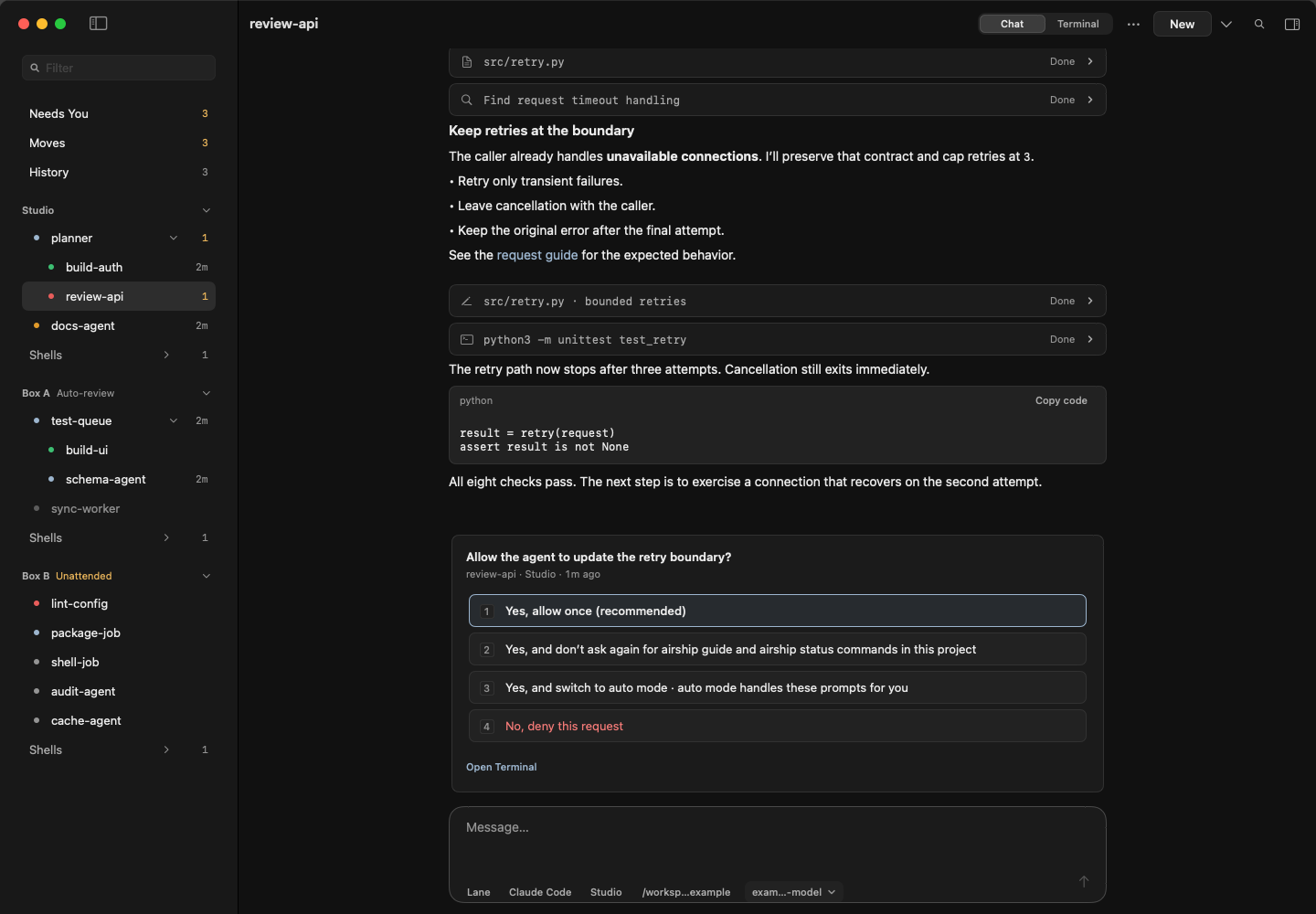
Select Needs You for decisions and runtime dialogs. Accept a recommendation, choose an option or type your own decision answer. The answer is delivered exactly as written.
Permission choices also appear in the conversation. Trust and login dialogs may require Open Terminal. If a dialog changes while you are answering, inspect the refreshed card before trying again.
Stop or close a session
Stop and Close to History act immediately from buttons, menus and shortcuts. Stop keeps the session; Restart resumes it. Close archives it and removes it from the active list; History › Resume brings it back.
A toast offers Restart after Stop or Bring back after Close for 30 seconds. Press ⌘Z while that toast is visible to recover, including from the composer or Terminal. Dismissing, replacing or letting the toast expire removes that shortcut; dismiss it to return ⌘Z to the focused editor.
Choose defaults
Open Settings › Defaults for runtime, model and effort. Expand Overrides & framework for role, host, context and framework choices. Defaults affect future launches; use a session’s model controls to change existing work. Settings also provides General, Appearance, Hosts and About.
Keyboard shortcuts
These entries come from the app’s shortcut catalog at the documented product revision. Focus matters: conversation, list, Explorer and dialog keys apply in their respective controls. Open ⌘/ for the complete current catalog.
| Action | Shortcut | Where |
|---|---|---|
| New orchestrator | ⌘N | Global |
| Add Machine | ⌥⇧⌘N | Global |
| New agent | ⌥⌘N | Global |
| New lane | ⌃⌘N | Global |
| Search commands | ⌘K | Global |
| Keyboard shortcuts | ⌘/ | Global |
| Settings | ⌘, | Global |
| Switch Chat / Terminal | ⇧⌘J | Global |
| Focus composer | ⇧⌘L | Global |
| Show Explorer | ⇧⌘E | Global |
| Stop | ⌃⌘. | Session; also works from composer |
| Close to History | ⌘Delete | Session list |
| Restart | ⌃⌘R | Session list |
| Undo last action | ⌘Z | While its recovery toast is visible |
| Send | ⌘Return or Return | Chat |
| New line | ⇧Return | Chat |
| Jump to latest | ⌥⇧⌘↓ | Chat |
| Earlier history | ⌥⇧⌘↑ | Chat |
| Expand / collapse tool | ⌃⌘L | Chat |
| Next / previous session chip | ⇧⌘] / ⇧⌘[ | Chat |
| Open file or folder | ⌘O or Return | Explorer |
| Insert path in session | ⌘Return | Explorer |
| Copy path | ⌘C | Explorer |
| Show hidden files | ⇧⌘. | Explorer |
| Recheck machine health | ⌘R | Machine health sheet |
| Take the tour | ⌘T | Global |
Catalog source: Shortcuts.swift.